Each News Record Field in Detail
General Tab
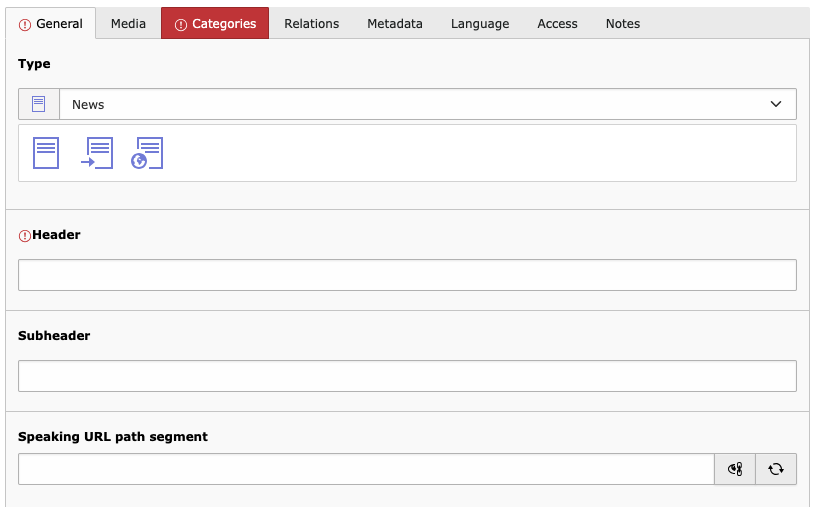
- Header
The main title of your article.
- Subheader
A secondary title for your article. This will typically be displayed above the main title.
Use this if your title is on the long side. It’s better to break a long header into two segments to get a short main title.
- Speaking URL path segment
This field contains the url address your article will have. It is generated from the header, and usually there is no need to modify it any further.

- Teaser
This is the first paragraph of your article. It will be displayed in a slightly larger font size and above any media.
It will also be used as a teaser in news listings.
- Date & time
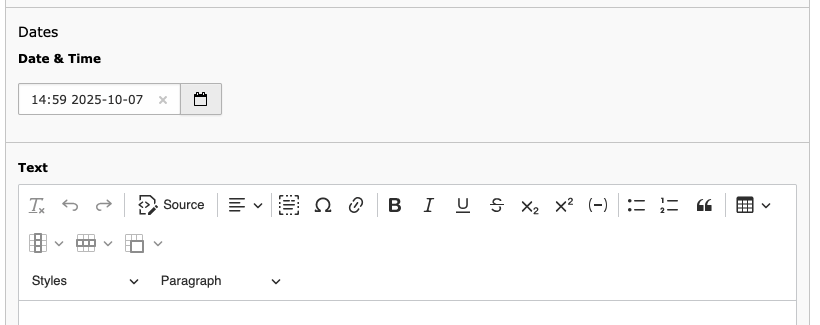
This will set the publication time of your article. You may either leave it on the set time (the time the news record was created) or set your own time to backdate the article.
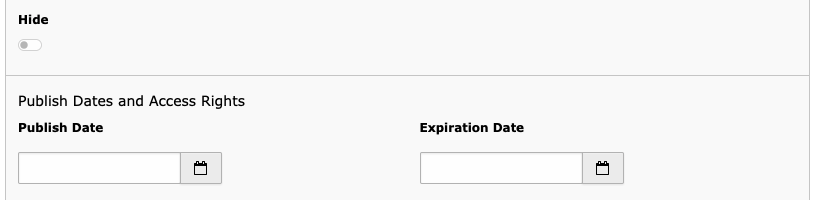
Note that this field will not set a timer for a planned release of the article, use Publish Date on the Access tab for this.
- Text
The main text of your article (minus the first paragraph, of course).
You'll have plenty possibilities to format your text, but please use these options sparingly and leave formatting to the system. Also, have a look at the web writing etiquette.
- Backstory
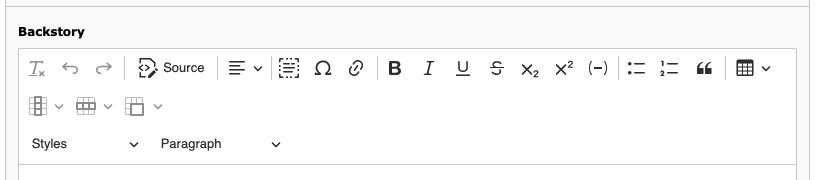
This field is to provide additional information which is not directly related to the subject of your article, but establishes context or defines terms. A usual example for a backstory is information on a mentioned person or institution.
The backstory will be displayed below the article in a slighty smaller, blue font.
Media Tab

- Media arrangement
This fields gives you a set of options where to display the first medium/image associated with the article.
- Media File
You can add a row of images and videos to your article. The first will be used as a header image on article listings as well as the article detail view (depending on the settings of the Media arrangement field). All additional media will be shown in a column right of the article.
Categories Tab

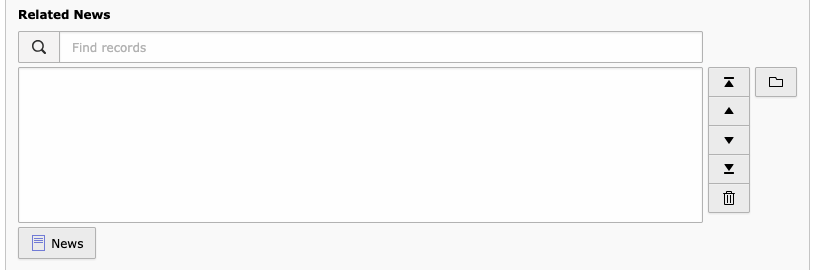
Relations Tab

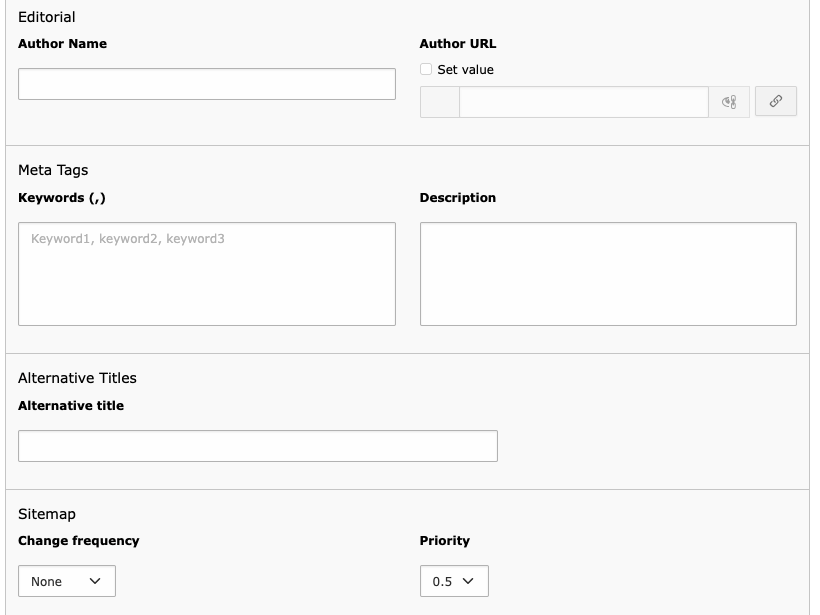
Metadata Tab
Access Tab