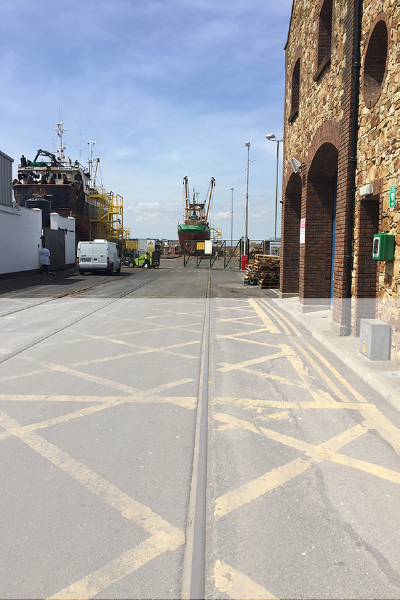
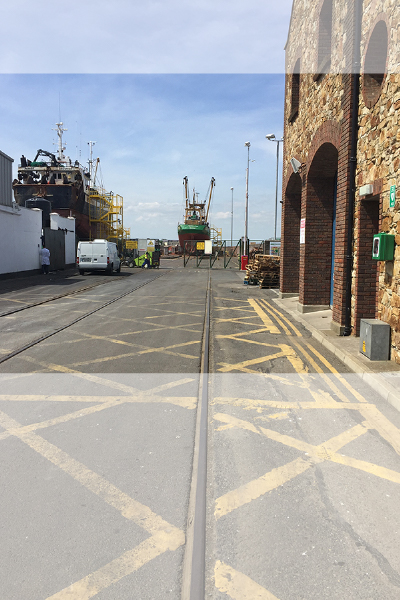
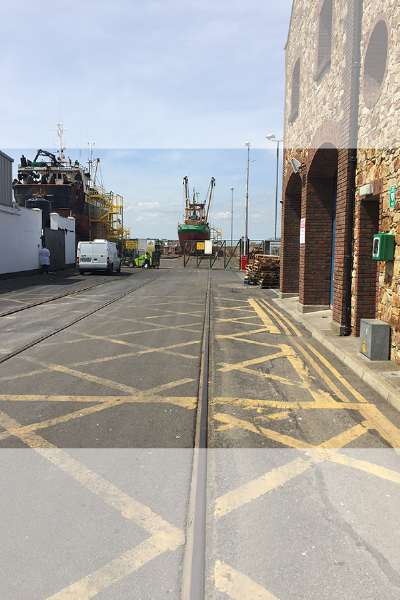
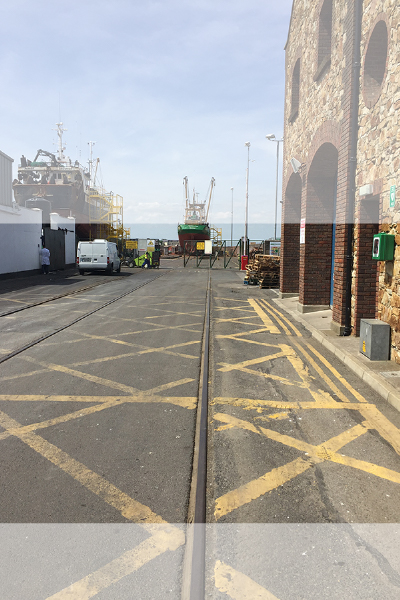
Image Rendering
Understand how image rendering and the aspect ratios work
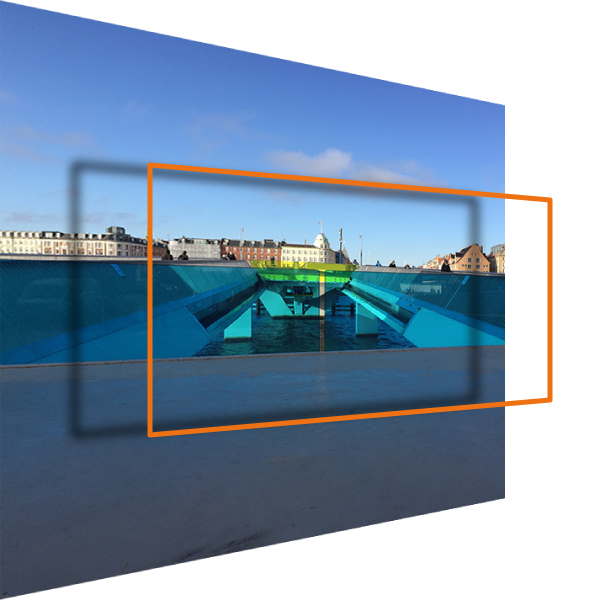
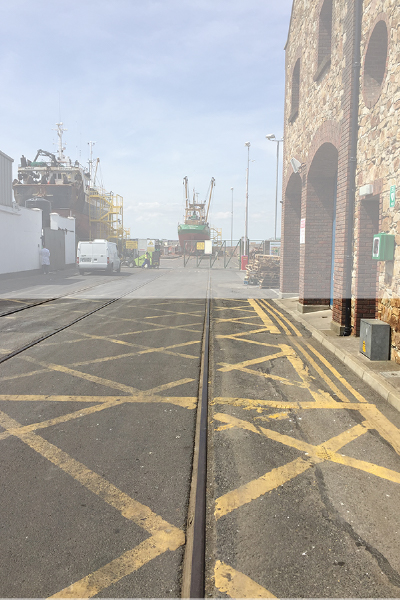
Whenever an image is referenced in the website, you get the option of choosing an aspect ratio, providing a simple tool to harmonise the display of multiple images that might have different dimensions and formats.
In the following, the three fields Aspect Ratio, Image fitting mode and Vertical alignment will be explained, providing examples for each.
Aspect Ratios
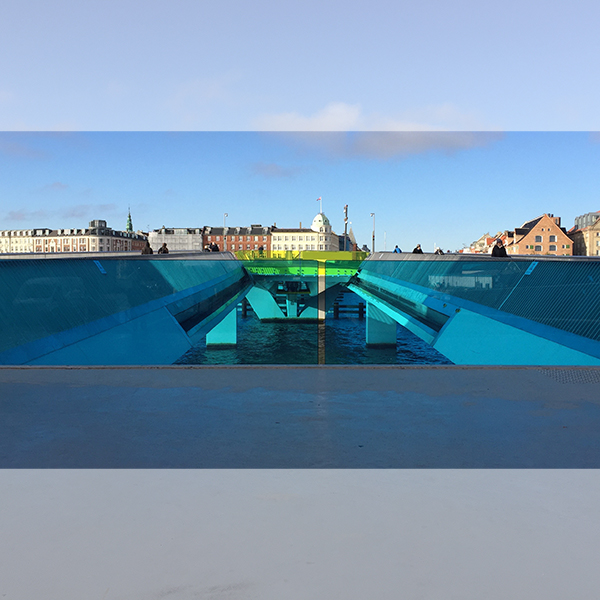
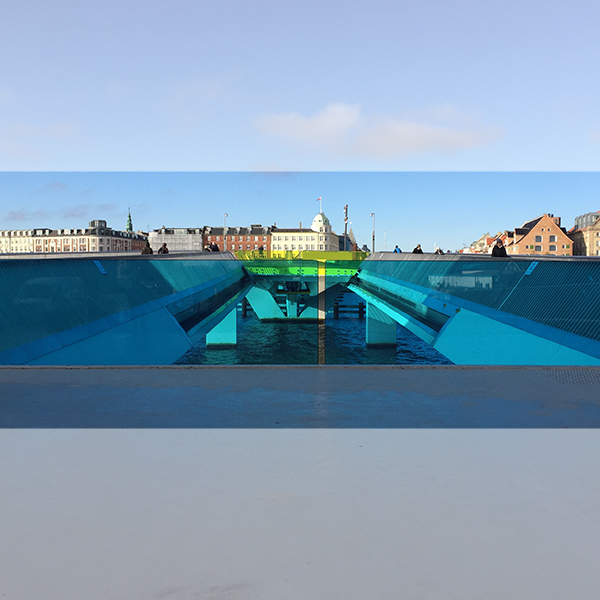
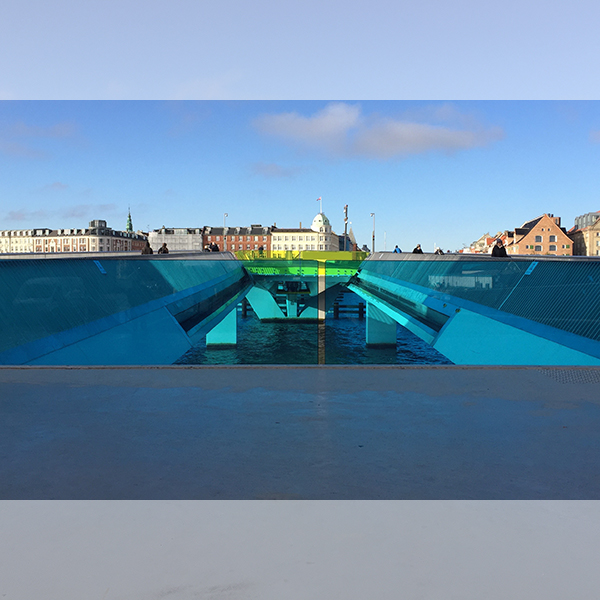
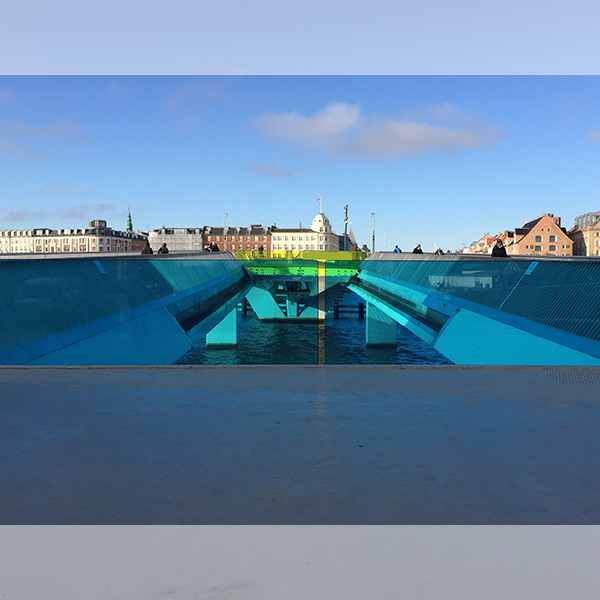
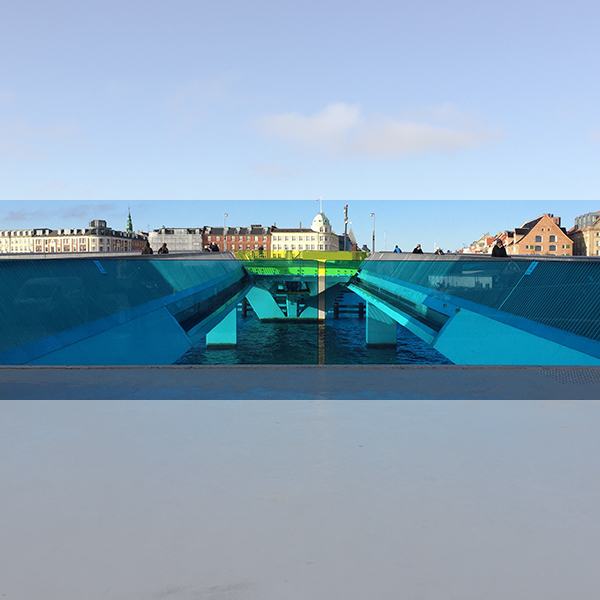
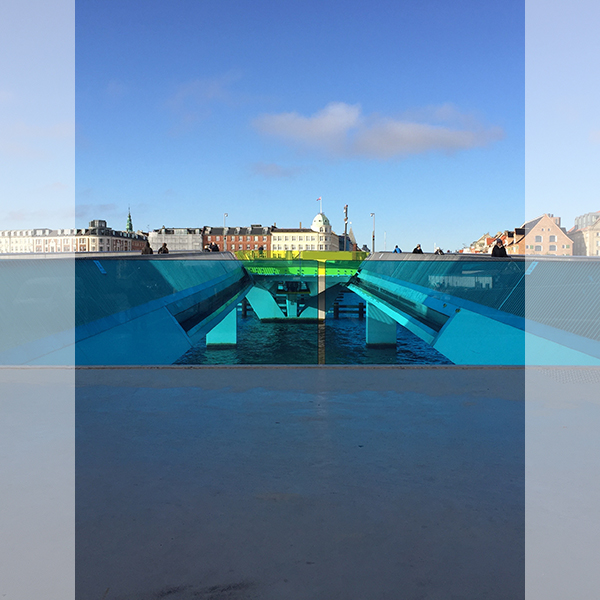
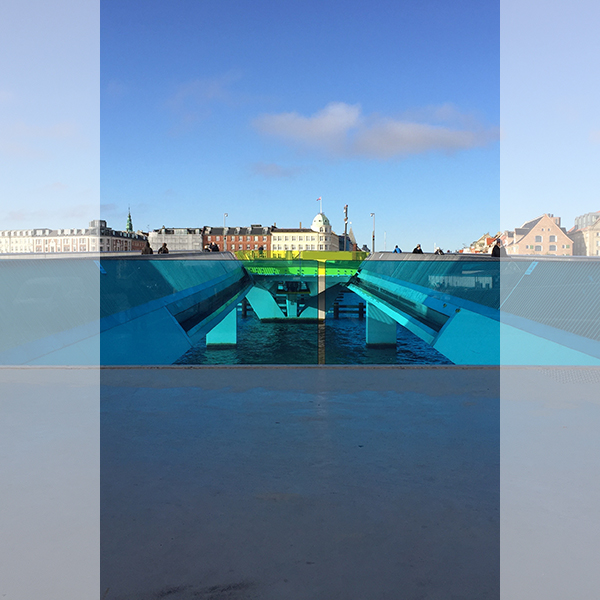
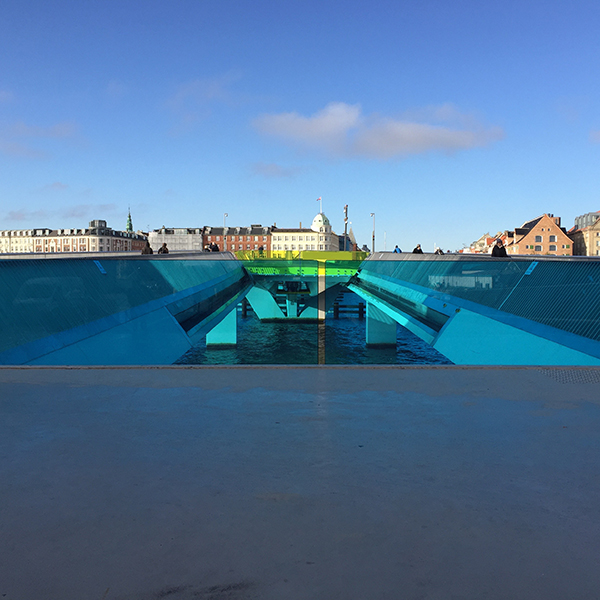
Image fitting mode
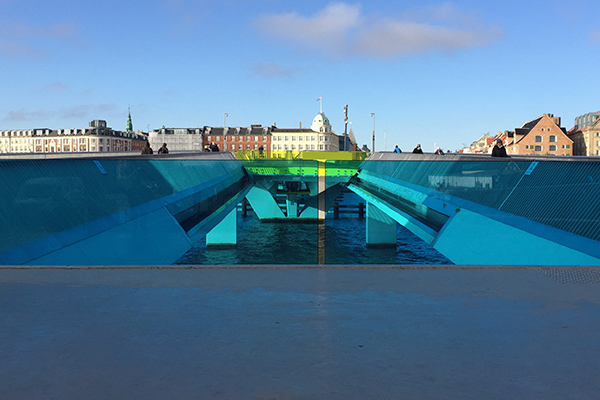
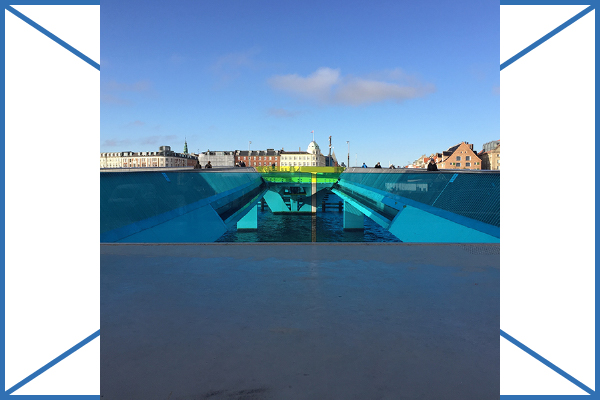
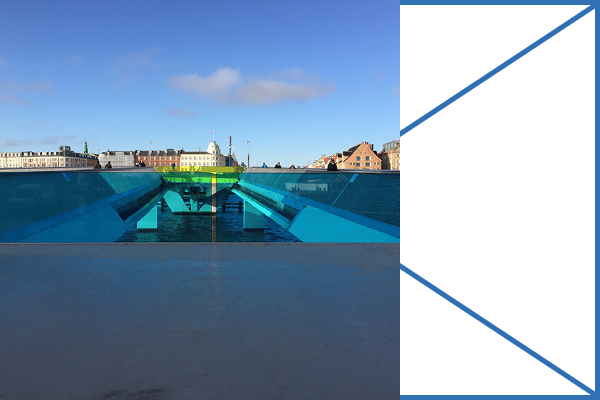
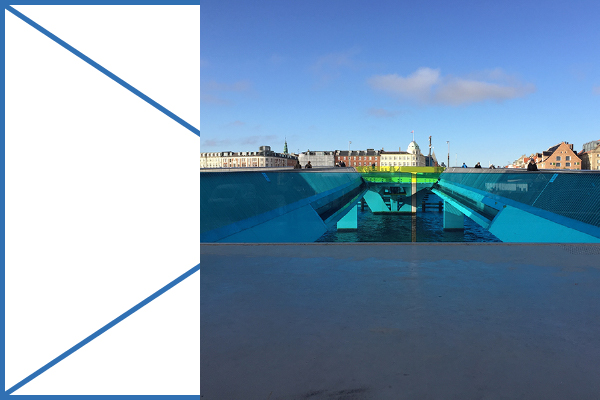
Images can be fitted to their container with two different methodes:
- Cover
The image is scaled so that the whole surface of the container with the preset is filled. If the image’s ratio is different to that of its parent container, it will be cropped (see Aspect Ratio above).
- Contain
The image is scaled until it fills its container in either dimension. For example, images in portrait orientation will stretch to the height of a landscape oriented parent container.
This will result in voids on two opposing sides of the image. While these voids usually do not harm the layout when above and below the picture, they can be a nuissance when they appear to the left and right of the image.
You can ammend this by choosing one of the three alignment options of the Contain method: left, center and right.
Vertical alignment