
Research Projects Records
The Research Project Record Type was introduced to offer a standardized template to represent research activities.
Setting research projects up as a database object has the following advantages:
- Rendering is done by the system – you don’t have to worry about layouting and formatting
- Also, layout and formatting will be uniform throughout the website
- It makes use of the other TUMCS database objects for personnel and departments
- Like any TUMCS record types, it can be referenced anywhere on the website by a few clicks
- Updating the record will affect all references on the website so no instance will be forgotten and outdated
- Research Project Records will automatically expire when their time period has ended, then listing them as completed instead of current (override possible if timeframe is exceeded)
Additionally, there may be more features to come building on a deeper relation between personnel and research objects:
- directly displaying the project’s title in the executive’s personnel object without having to edit the personnel record
- listing all overseen projects of project heads or coordinators on personal pages
- listing all projects funded by specific organizations. This also means that there will be a separate data object for funding agencies, making their use even easier since they can be referenced without having to add their logo every time.
Each Record Field in Detail
General Tab
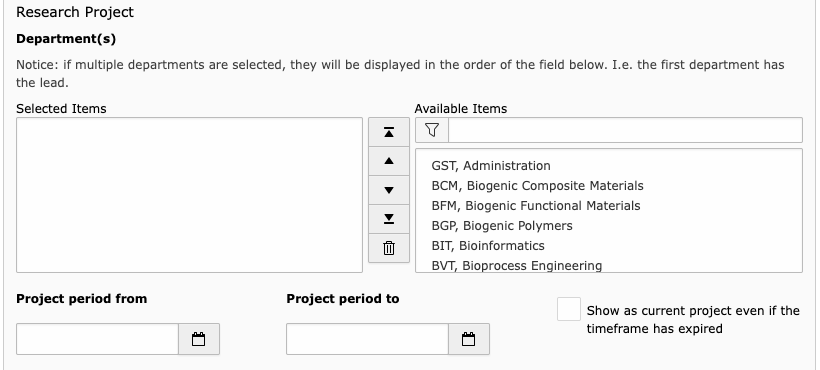
- Department(s)
Select the departments involved in the research project.
You can set up a hierarchy of departments by using the arrow fields in the center column. The first selected/top-most department will be interpreted as leading party.
- Period from
The start date of the project’s duration.
- Project period to
The end date of the project’s duration.
- Show as current...
Sometimes, completion of a research project may take a bit longer.
Mark this checkbox to list the project as a current and ongoing even if the period has ended.
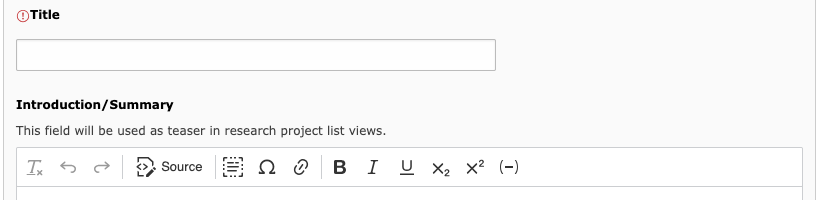
- Title
The title of the research project.
- Introduction/Summary
A short written overview of the project and its objectives.
This field may be used as a teaser text in project listings.
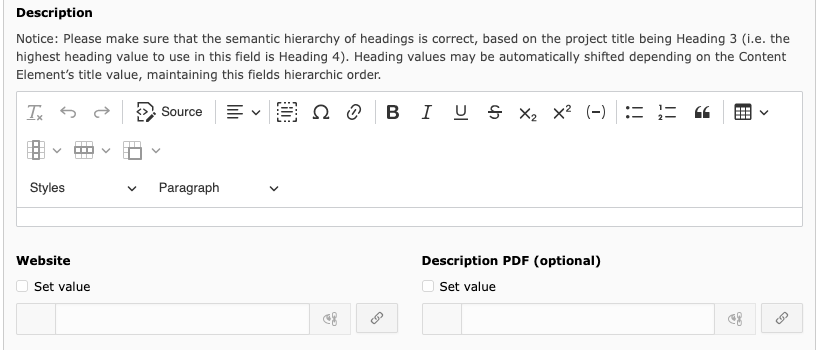
(the summary field has been compressed in height to save space)
- Description
Use this field for the more in-depth explanation of your research project.
- Website
Add a link if your project has an individual website.
- Description PDF
You may also link to a PDF with information on the project.
You'll have the possibility to upload it directly in the file selection dialogue, if you haven’t already.
Images Tab
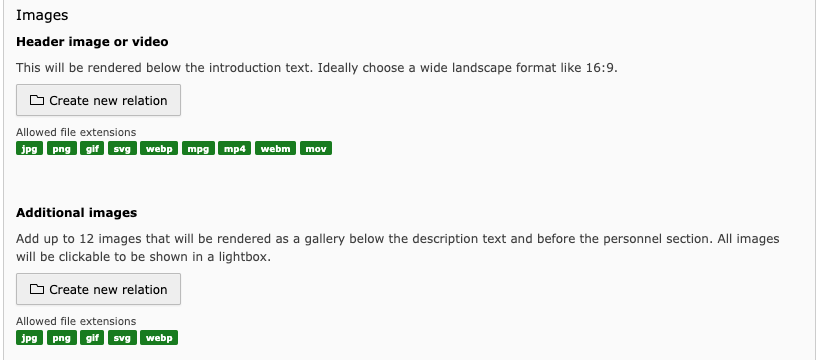
- Header image or video
Select one image or video as title media.
Recommended format: 16:9, for example 1920 x 1080 pixel.
- Additional images
Add up to 12 images that will be rendered as a gallery below the description text and before the personnel section. All images will be clickable to be shown in a lightbox.
In contrast to the Text & Images content element, the gallery is preconfigured and doesn’t offer any customization options.
Personnel Tab
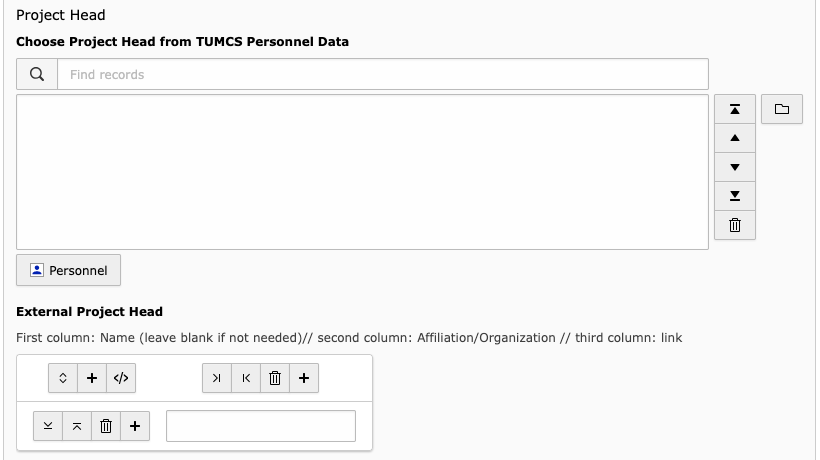
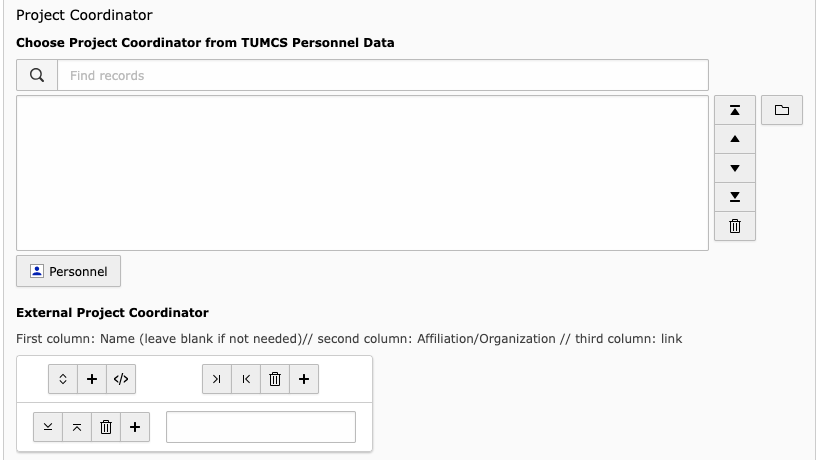
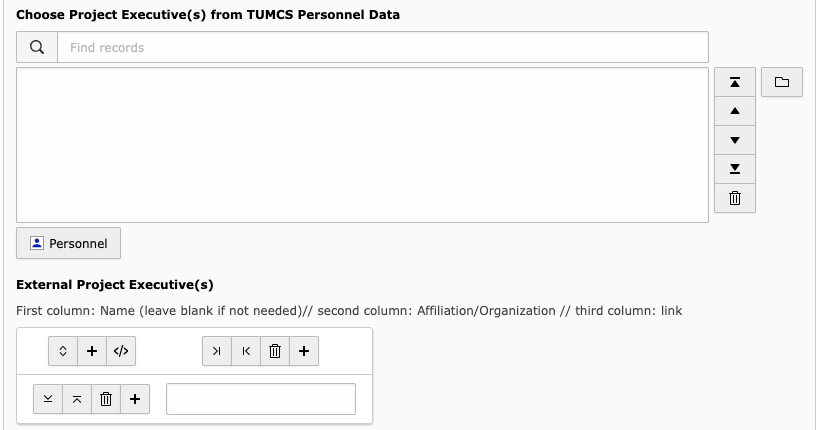
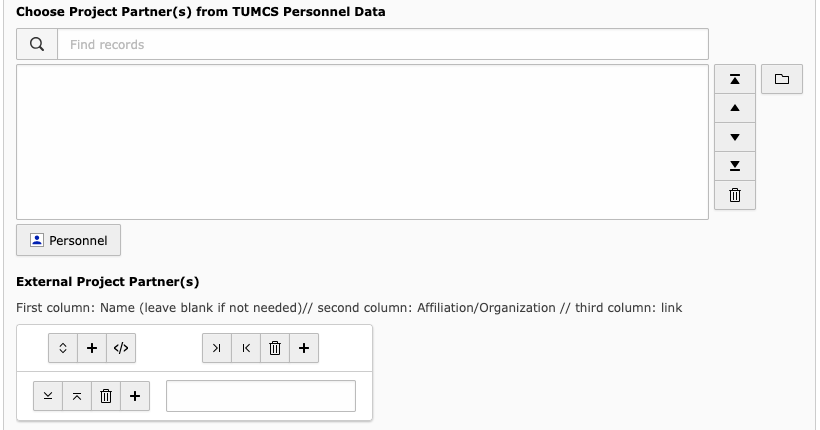
The personnel tab features four times the same fields for the respective positions the different people may be entrusted with.
The fields will be explained for all four positions at once.
- Choose [...] from TUMCS Personnel Data
Use this field to reference a person that’s in the website’s TUMCS personnel data pool.
You may use the search field for easier navigation or click on the folder symbol on the right to browse for people.
- External [...]
Use this field for people not available as a data object.
The first column is for the name, the second for the person’s oraganization, and the third for providing an URL which will turn the name into a link. If no name is provided, the affiliation will be linked to the URL’s target.
While any column is optional, you need to provide empty cells for omitted data for the data to be displayed correctly.
Using the table form
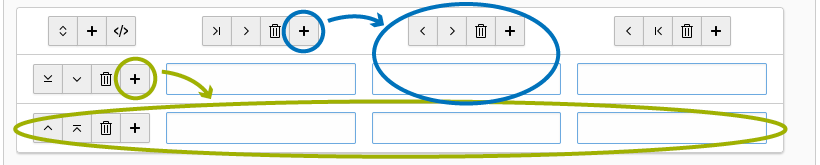
- Use the plus symbol above the column to add columns (blue).
- Use the plus symbol on the left of the row to add rows (green).
- You may also use the plus symbol at the top left to add multiple columns and rows at once.
Funding Tab
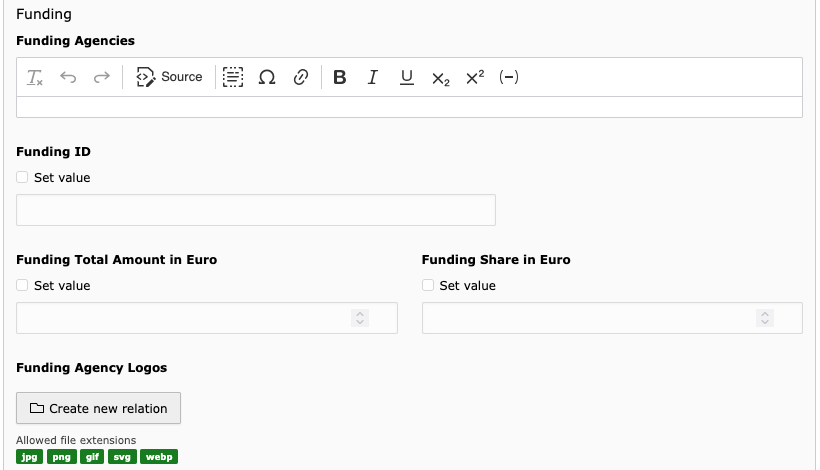
(the funding agencies field has been compressed in height to save space)
- Funding Agencies
Use this field to provide information on funding agencies.
This may be a list or a full phrase, possibly required by the funding agency.
- Funding ID
The funding ID if available.
- Funding Total Amount
The total funding amount in Euro without currency symbol.
- Funding Share
The department’s share of the total funding in Euro without currency symbol.
- Funding Agency Logos
Add the logos of the funding agency/agencies here.
In the filelist tree, be sure to check the Assets » Logos folder if the logos are already uploaded to the server to prevent duplicates.