
Common Option Groups
Option fields shared by multiple Content Elements
Content Element
- Type
This field allows you to change the Content Element Type, for example if you want to change it from Regular Text Element to Text & Images.
- Column
Using this field you can move an element between the page’s columns, for example from the main content area to the sidebar.
This field is of limited use in containers.
- Container
Using this field you can move an element between the page’s containers.
This field is quite useless, frankly.
Headlines
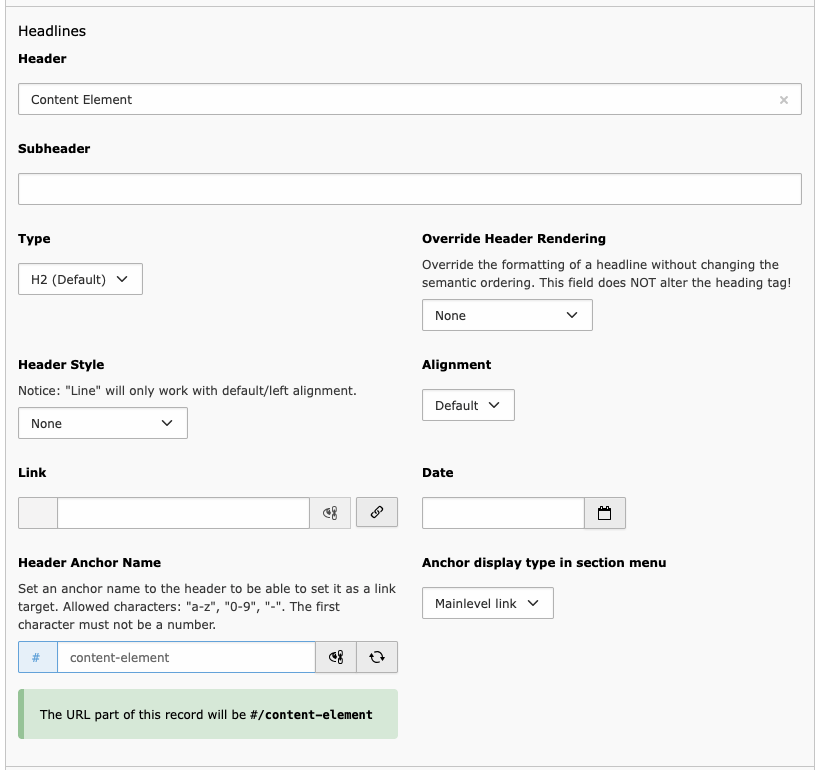
- Header
The heading text for the Content Element. Although this field may be left blank, it is good practice to name the Content Element and then set the Type to Hidden to keep the layout view tidy.
- Subheader
Extend the heading section by a sub header if you want to.
- Type
Choose the correct heading value for the Content Element or hide it. Please read the guideline for correct heading semantics for proper element title nesting.
If you don’t like the formatting of the correct heading type in your use case, you'll like the next field:
- Override Header Rendering
Use this field to give your semantically correct heading another format. You can disguise it as any other heading type without messing with the page’s hierarchy.
Use Screen readers only if you want to hide the Heading in the layout, but still offer it as a navigation aid for visually impaired people. A use case for this is each department’s footer information which is preceeded by an H2 heading saying “Contact”.
- Alignment
Align the header to the left, to the right, or center it. Or just leave it on the left side, as this is the intended alignment :-)
- Link
You may use the heading to link to another page. Please use the Page link type in the dialogue to link internally, as this prevents broken links if an url is changed.
- Date
This will display the selected date under the Heading.
- Header Anchor Name
Set an anchor name to the header to be able to set it as a link target. Allowed characters: "a-z", "0-9", "-". The first character must not be a number.
On a new Content Element, this field will automatically generate the anchor name from the Header field value. An exception are container elements which will save on creation without opening the edit form.
- Anchor display type in section menu
Choose how the element’s heading should be displayed in the page’s table of contents.